



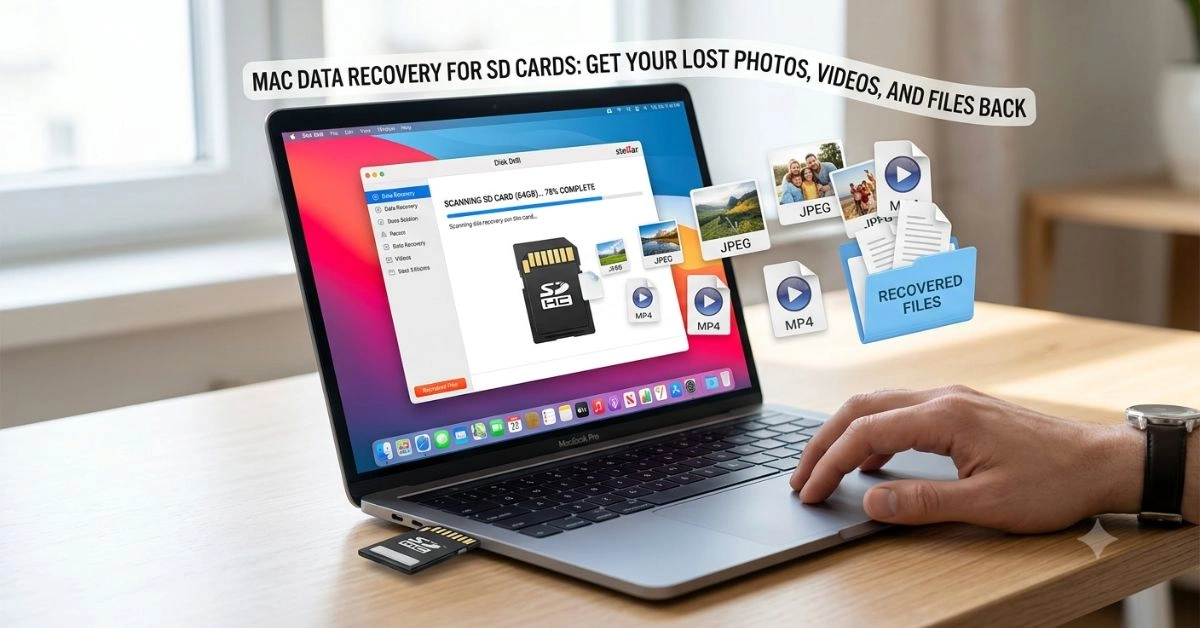
SD cards remain essential for photographers, videographers, drone operators, and everyday users storing images, 4K footage, or documents. Yet they fail more often than many expect. Common triggers include accidental deletion, improper ejection during transfers, sudden power loss in cameras, file system corruption, formatting errors, or physical wear from heat and repeated use.
On macOS, recovery hinges on acting fast. The moment you notice missing files, stop using the card. New writes can overwrite recoverable data sectors permanently. macOS handles FAT32, exFAT, and sometimes APFS-formatted cards, but corruption often makes them unmountable or appear as RAW.
Data recovery software scans for file signatures, reconstructs directory structures, or works from disk images. Success depends on how much new data has been written and the card’s condition. Quick action combined with the right tool often restores most or all files.
Immediate Steps Before Running Any Software
- Safely eject and remove the card if it’s still inserted. Avoid further reads or writes.
- Insert it via a reliable card reader, not directly into a potentially faulty camera slot or laptop SD slot. Test on another Mac or PC if possible to isolate the issue.
- Create a byte-to-byte backup (disk image) of the entire card using Disk Utility or recovery software. This protects the original data if the card degrades during scanning.
- Work from the image for recovery whenever possible. This is safer for failing cards.
- Switch the physical lock tab to read-only if your card has one.
These precautions dramatically improve outcomes, especially with fragile SD cards.
Top SD Card Data Recovery Software for Mac
Several strong options exist for macOS users. Here are the most reliable ones based on real-world performance with memory cards.
Disk Drill stands out as the top choice for most Mac users. It offers an intuitive interface, quick and deep scans, file previews before recovery, and specialized modes for photos and videos from cameras. It supports Apple Silicon natively and includes byte-to-byte backups. Many users report excellent recovery of original filenames and folder structures on FAT/exFAT cards.
EaseUS Data Recovery Wizard for Mac provides a clean workflow and solid results for recently deleted or formatted cards. It handles common media files well and includes a free version for initial scanning.
Stellar Data Recovery for Mac excels with corrupted or RAW cards and offers bootable recovery options. It performs reliably on deeper scans for fragmented files.
PhotoRec (with TestDisk) delivers completely free, powerful signature-based recovery. It ignores the file system and carves files directly from raw data—ideal for severely corrupted cards. The trade-off is a terminal-based interface and generic recovered filenames, but it often finds files other tools miss.
R-Studio for Mac targets advanced users and professionals. It provides deep control over scans, RAID support, and strong performance on damaged partitions.
Other mentions include SanDisk RescuePro (especially for SanDisk cards) and Wondershare Recoverit.
Comparison of Leading Options
| Software | Recovery Success Rate (Typical) | Free Version Limits | Key Strengths | Drawbacks | Pricing (approx.) |
| Disk Drill | High (80-95% for quick cases) | Scan & preview free | User-friendly, previews, backups, camera modes | Full recovery requires license | $89 lifetime |
| EaseUS Data Recovery | High for recent deletions | Limited GB in free tier | Simple interface, good media recovery | Subscription model | Varies, often annual |
| Stellar Data Recovery | Strong on corrupted cards | 1GB free | Bootable options, deep scans | Can be pricier for premium | $60–$100+ |
| PhotoRec/TestDisk | Very good (signature-based) | Fully free | Handles severe damage, no cost | No previews, terminal interface | Free |
| R-Studio | Excellent for pros | Demo with limits | Advanced features, flexible | Steeper learning curve | Higher, professional |
Choose based on your comfort level and data urgency. Disk Drill often balances power and ease best for everyday Mac users.
Step-by-Step: Recovering Data with Disk Drill on Mac
Download Disk Drill from the official site and install it. Connect your SD card and launch the app.
Select the SD card from the list of volumes. Click Search for lost data to start scanning. The process combines quick, deep, and signature scans for thorough coverage.
Once complete, browse results by file type or path. Use the preview feature to check photos, videos, or documents before committing. Select what you want and choose a safe recovery location on your Mac’s internal drive or another external storage—never back to the SD card itself.
For better results with failing cards, first create a disk image via the app’s backup feature, then scan the image.
The whole process usually takes minutes to an hour depending on card size and scan depth.
Free Methods and Built-in macOS Tools
For zero-cost attempts, start with PhotoRec. Download TestDisk/PhotoRec from the official cgsecurity.org site. Run it in Terminal, select the SD card device, choose the file types, and point to a recovery folder. It works slowly but effectively.
macOS Disk Utility offers First Aid for minor corruption. Select the card, run First Aid, and see if it mounts afterward. This fixes some logical errors but won’t recover deleted files.
Time Machine backups can restore files if you backed up the card contents previously. Check Finder or the Time Machine app for older versions.
Advanced Troubleshooting for Stubborn Cases
If the card doesn’t mount:
- Try different readers and ports.
- Use Terminal commands like diskutil list to identify the device, then diskutil repairVolume on the volume.
- For RAW or unmountable cards, imaging first becomes critical.
Physical damage (bent pins, water exposure) often requires professional lab services. Software can’t fix hardware failures.
When evaluating tools, focus on real recovery tests, preview capabilities, and update frequency rather than marketing claims. Independent reviews and user forums provide honest insights into performance.
For deeper dives into tech tools and recovery discussions, check out conversations on Geekzilla IO Podcast.
Preventing Future Data Loss
- Eject cards properly and never remove them during writes.
- Use high-quality, name-brand cards suited to your device (speed class, capacity).
- Maintain multiple backups—card, computer, and cloud.
- Format cards in the camera they’ll be used in.
- Monitor card health with tools that offer S.M.A.R.T.-like diagnostics where available.
Budgeting for reliable hardware and software pays off. Managing costs for premium tools or professional services is like handling any smart tech investment—plan ahead for peace of mind.
When to Consider Professional Recovery Services
If software fails or the card shows physical damage signs (clicking, extreme heat, no recognition anywhere), stop DIY efforts. Labs use clean rooms and specialized hardware for better chances, though at higher cost. Always ask about success guarantees and no-data-no-fee policies.
FAQs
1. Can I recover data from a formatted SD card on Mac?
Yes, especially with quick formats and no new writes. Deep scans in tools like Disk Drill or PhotoRec often retrieve files by signature.
2. Is free SD card recovery software reliable on Mac?
PhotoRec offers strong free performance for many cases, though it lacks previews. Paid options like Disk Drill provide more convenience and features for higher success in complex scenarios.
3. Why won’t my SD card show up on Mac?
Corruption, incompatible file system, dirty contacts, faulty reader, or hardware failure. Try Disk Utility First Aid, different readers, or recovery software imaging.
4. How long does SD card recovery take?
Scans range from minutes for small cards to hours for large or deep scans. Preview and selective recovery speed up the process.
5. Is it safe to use recovery software on Mac?
Reputable tools from official sites are safe. Download directly from developers, grant necessary permissions, and recover to a different drive.
6. What file types recover best from SD cards?
Photos (JPEG, RAW), videos (MP4, MOV), and common documents usually fare well. Heavily fragmented or overwritten files have lower chances.
7. How do I choose the right SD Card Data Recovery Software Mac?
Prioritize native macOS support, previews, backup features, and user feedback for your specific loss scenario. Test free scans first.
When comparing options, look for transparent testing and experiences, much like detailed platform evaluations.
For purchases, ensure secure transactions—similar to how you’d verify banking safety for any online financial step.