



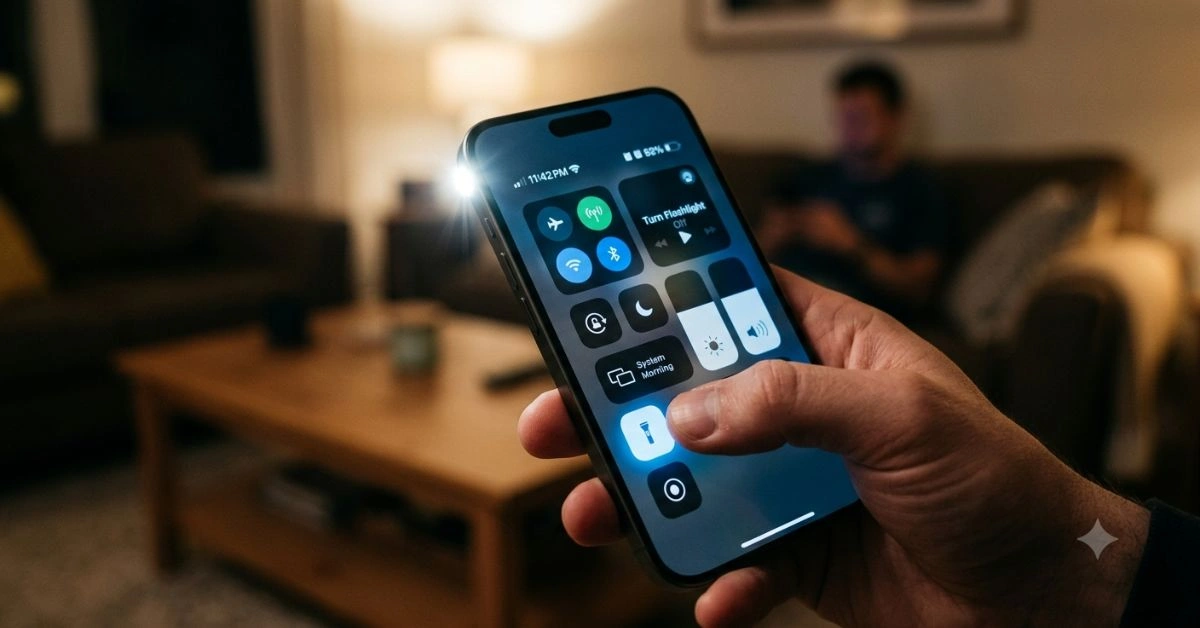
We’ve all been there. You’re fumbling in the dark, finally get the flashlight on, and then it stays lit like it’s glued to your screen. Or worse, you wake up to a dead battery because the light never turns off. Turning off your phone’s flashlight should be simple, but device differences, software glitches, and accidental activations make it frustrating for millions of users every day.
This guide walks you through every reliable method to turn your phone flashlight off on both Android and iOS. We’ll cover quick shortcuts, deeper troubleshooting for when it gets stuck, battery impacts, and smart habits to prevent the problem altogether. Whether you’re on the latest Pixel, Galaxy, iPhone, or something older, you’ll find actionable steps that work.
Why Your Phone Flashlight Won’t Turn Off (And Why It Matters)
The flashlight feature uses your phone’s camera LED, which draws significant power. Leaving it on accidentally can drain 10-20% of your battery per hour or more, depending on brightness and device model. Beyond battery life, persistent use can cause minor heating, which over time affects long-term battery health.
Common triggers include:
- Accidental gestures on the lock screen
- Apps (especially camera-related) holding the hardware
- Software bugs after updates
- Gestures or voice commands misfiring
- Third-party flashlight apps with permissions issues
Understanding these helps you fix the root cause instead of just toggling the light repeatedly.
Quick Ways to Turn Phone Flashlight Off on Any Device
Start with the basics before diving into model-specific fixes. These universal steps resolve most cases.
From the Lock Screen or Home Screen
On most modern phones, the flashlight is accessible without unlocking:
- iOS: Swipe down from the top-right corner to open the Control Center and tap the flashlight icon.
- Android: Swipe down from the top (once or twice) for Quick Settings and tap the torch/flashlight icon.
If the screen is off and the light is on, a simple press of the power button often reveals the lock screen with controls visible.
Pro tip: Train yourself to check the status bar or notification shade for the flashlight indicator—a small torch icon or persistent notification.
Turning Off Flashlight on iPhone: Step-by-Step for All Models
Apple keeps flashlight controls consistent across recent iPhones, with some lock screen customizations.
Using Control Center (Fastest Method)
- Swipe down from the top-right edge of the screen (or up from the bottom on older models with Home button).
- Locate the flashlight icon (it looks like a small torch).
- Tap it to toggle off. The icon will dim when inactive.
Lock Screen Shortcut
On iPhones with iOS 16+, you can add the flashlight to your lock screen via customization. To turn it off:
- Wake the screen.
- Long-press the flashlight button on the lock screen and toggle it.
- Or simply swipe left on the lock screen in some setups to access it quickly.
Recent iOS updates introduced options to adjust lock screen swipe behaviors to reduce accidental flashlight or camera triggers. Check Settings > Camera to tweak “Lock Screen Swipe to Open Camera” if accidental toggles are frequent.
Voice Commands with Siri
Say “Hey Siri, turn off the flashlight.” This works even when the phone is locked, as long as Siri is enabled.
From the Camera App
If you open the flashlight via the Camera app, close the app completely (swipe up from the bottom and swipe away the app card) and try toggling again.
Turning Off Flashlight on Android: Methods Across Manufacturers
Android offers more variety due to different skins (Samsung One UI, Google Pixel, Xiaomi, etc.), but core methods overlap.
Quick Settings Panel
- Swipe down from the top of the screen.
- Swipe down again to expand the full Quick Settings tiles if needed.
- Tap the Flashlight or Torch icon to turn it off. It usually highlights when active.
Customize the panel: Tap the pencil/edit icon to rearrange or add/remove the tile for faster access.
Google Assistant or Manufacturer Assistants
- “Hey Google, turn off the flashlight.”
- On Samsung: “Hey Bixby, turn off the flashlight.”
- Works hands-free and great in dark environments.
Lock Screen and Gestures
Many Android phones support double-tap or quick-tap gestures. Go to Settings > Gestures to check or disable if they’re causing accidental activations. On Pixels, Quick Tap can toggle the light—disable it temporarily if problematic.
Power Button or Volume Shortcuts
Some devices allow holding the power button to access a menu, or specific volume patterns. Check your model’s manual or search “your phone model + flashlight shortcut.”
Comprehensive Troubleshooting Table: Android vs iOS
Here’s a side-by-side comparison of the most effective methods:
| Method | Android Steps | iOS Steps | When to Use | Success Rate |
| Quick Settings/Control Center | Swipe down (twice if needed), tap Torch icon | Swipe top-right, tap Flashlight icon | Everyday use, fastest | Very High |
| Voice Assistant | “Hey Google/Bixby turn off flashlight” | “Hey Siri, turn off the flashlight” | Hands-free, dark rooms | High |
| Lock Screen | Wake screen, use gesture or quick tile | Long-press or swipe lock screen controls | Phone locked | High |
| Close Background Apps | Recent apps > Close Camera/Flashlight apps | App Switcher > Swipe away Camera | Light stuck due to app conflict | Medium-High |
| Restart Device | Hold Power button > Restart | Hold Volume + Side > Slide to power off > Turn on | Persistent glitches | Very High |
| Gestures/Settings | Settings > Gestures > Disable Quick Tap or similar | Settings > Camera > Adjust lock screen options | Accidental activations | High |
| Safe Mode (Android) | Hold Power > Long-press Restart > Safe Mode | N/A | Third-party app interference | High |
This table covers the majority of scenarios for quick reference.
When the Flashlight Is Stuck: Advanced Troubleshooting
If basic toggles fail, the issue is usually software-related or hardware conflict.
Restart and Force Close Apps
A simple reboot fixes most glitches. On Android, boot into Safe Mode to test if a third-party app is the culprit. Close any camera, video call, or flashlight apps running in the background.
Clear Cache and Update Software
- Android: Settings > Apps > Camera > Storage > Clear Cache. Then check for system updates.
- iOS: Update via Settings > General > Software Update. Consider resetting all settings (doesn’t delete data) if issues persist after updates.
Battery and Power Mode Checks
Low battery or power-saving modes can interfere. Switch to normal mode temporarily. Monitor battery usage in Settings to see if “Flashlight” appears as a high consumer.
Hardware-Related Issues
Water damage, drops, or overheating can cause erratic behavior. If the light flickers or stays faintly on, dry the phone thoroughly (if exposed to moisture) and seek professional repair. Avoid forcing it off repeatedly, as this can worsen LED strain.
Battery Drain from Flashlight: Real Impact and Savings Strategies
The LED flashlight is power-hungry because it runs at high intensity. Continuous use can heat the device and accelerate battery degradation over months.
Practical tips to minimize drain:
- Use the lowest effective brightness (some apps allow this).
- Turn it off immediately after use.
- Prefer screen brightness adjustments or external lights for extended needs.
- Monitor usage stats regularly.
For deeper battery optimization, consider holistic habits that support overall device wellness, similar to how structured routines improve personal energy levels—check out this complete guide on holistic wellness approaches for sustained vitality.
Third-Party Flashlight Apps: Worth It or Risky?
Built-in tools are usually best, but dedicated apps offer extras like strobe, brightness sliders, or SOS modes.
Popular safe options on Android include minimal-permission apps like Color Flashlight or Tiny Flashlight. On iOS, choices are more limited due to system restrictions. Always review permissions—avoid apps requesting unnecessary access like contacts or location.
If you’re evaluating tools or software for productivity, reading honest user experiences can help, such as this detailed PixelSpinx review sharing real 2026 insights.
Prevention: Habits to Stop Flashlight Issues Before They Start
- Customize lock screen to reduce accidental swipes.
- Regularly update your OS and apps.
- Use widgets or home screen shortcuts for controlled access.
- Teach family members basic controls.
- Enable battery optimization for camera-related apps.
Special Cases: Flashlight During Calls, Videos, or Emergencies
Some phones flash the light for notifications or calls—disable in Sound & Haptic settings. During video calls, the camera lock can interfere; end the call and toggle manually.
In emergencies, the flashlight is a lifesaver. Keep a portable power bank charged so you can still use it without draining your main phone battery.
Device-Specific Variations and Future Updates
Samsung, Google Pixel, OnePlus, and Xiaomi each have slight UI differences. For example, Samsung’s Edge panels or Good Lock modules offer extra customization. Stay informed about OS updates, as new versions often refine gesture behaviors and power management.
Looking ahead, expect tighter integration with AI assistants for smarter, context-aware flashlight controls.
Maintaining Your Phone’s Camera and LED Health
Treat the flashlight as part of the camera system. Keep lenses clean, avoid extreme temperatures, and don’t overuse in hot conditions. If problems recur frequently, a factory reset (after backup) or professional diagnostics may be needed.
Frequently Asked Questions About Turning Phone Flashlight Off
1. Why does my phone flashlight turn on by itself?
Accidental gestures, pocket activations, or buggy apps. Disable lock screen shortcuts or gestures to prevent it.
2. Can leaving the flashlight on damage my phone?
It won’t cause immediate harm, but prolonged use drains battery faster and generates heat, which can shorten battery lifespan over time.
3. How do I turn off the flashlight on an iPhone without Control Center?
Use Siri, lock screen button (if added), or close the Camera app.
4. Why is my Android flashlight greyed out or unresponsive?
Camera app conflict, low battery, or Safe Mode test. Restart or clear camera cache.
5. Does the flashlight use a lot of battery?
Yes—expect noticeable drain within 30-60 minutes of continuous use. Turn it off promptly.
6. What if the flashlight won’t turn off even after restart?
Try Safe Mode (Android), reset settings (iOS), or check for hardware issues. Persistent cases may need service.
7. Are there shortcuts for turning off flashlights faster?
Yes—voice commands, custom gestures, and Quick Settings edits speed things up significantly.
8. How to stop the flashlight from turning on during calls or notifications?
Adjust notification settings and LED flash options in Sound or Accessibility menus.
9. Is it safe to use third-party flashlight apps?
Choose highly-rated ones with minimal permissions. Built-in is safest for daily use.
10. My phone is overheating with the flashlight on—what now?
Turn it off immediately, let the device cool, and avoid heavy use in warm environments.
This guide equips you with everything needed to handle flashlight issues confidently. By applying these steps, you’ll save battery, reduce frustration, and keep your phone running smoothly. Bookmark it for quick reference next time the light won’t cooperate.
For More Information Visit Aitrender.