



Introduction
You’ve got your phone out in a dark parking lot or hallway, swipe down for the flashlight, and nothing. Just a grayed-out icon or a quick flash that dies immediately. I’ve been there—hundreds of times—fixing this exact frustration for people with every major brand.
The flashlight shares hardware with your rear camera, so when one acts up, the other often follows. Most cases are software-related and fixable at home. Some point to deeper hardware problems. I’ll walk you through diagnosing it fast and fixing it without wasting time on useless steps.
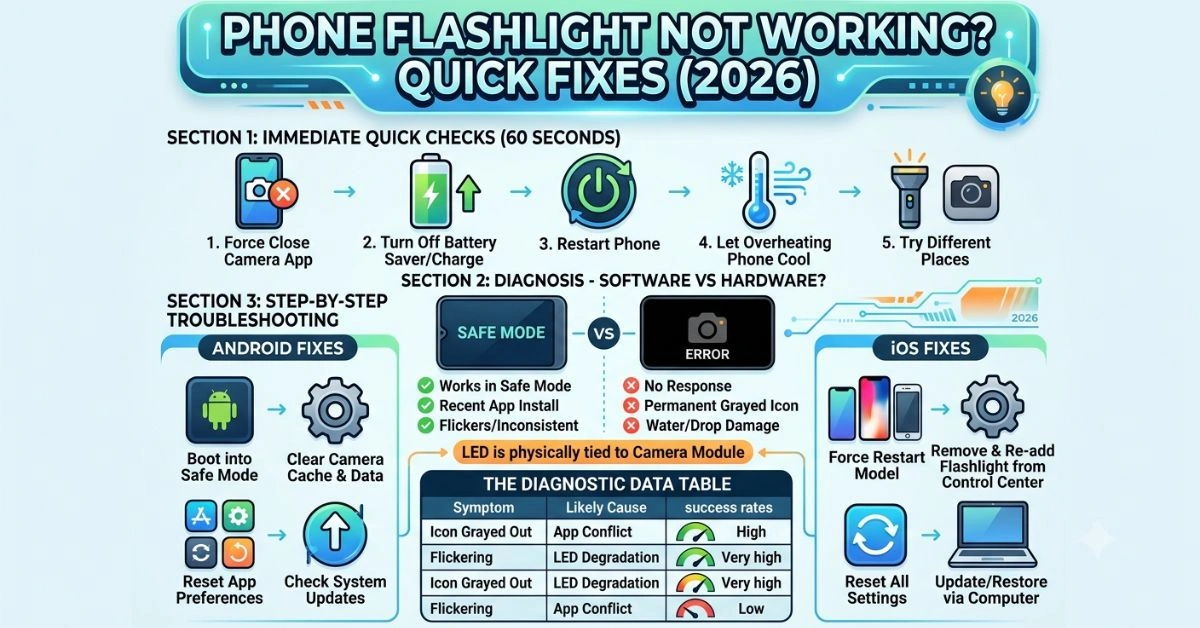
Section 1: Immediate Quick Fixes (The 60-Second Checks)
Start here before anything else. These solve the majority of cases.
Check for camera conflicts: The flashlight and camera can’t run at the same time. Force close the Camera app completely. On Android, go to recent apps and swipe it away or go to Settings > Apps > Camera > Force Stop. On iPhone, double-click Home (or swipe up from bottom and pause on newer models) and swipe the Camera card up to close.
Battery and power modes: Low battery or Battery Saver/Low Power Mode often disables the flashlight. Charge to at least 20-30%. Turn off Battery Saver on Android (swipe down Quick Settings) or Low Power Mode on iPhone (Settings > Battery).
Restart the phone: Hold the power button, restart normally. Don’t just lock it—full reboot clears temporary glitches in the system UI and camera service.
Overheating safeguard: Phones throttle the flashlight when hot to protect components. Remove the case, let it cool for 10-15 minutes in a normal room temperature spot, then try again.
Toggle from different places: Try the Quick Settings tile on Android or Control Center on iPhone. Also open the Camera app and tap the flash icon there. Sometimes one works when the other doesn’t.
If none of these bring it back, move to diagnosis.
Section 2: Software Glitches vs. Hardware Failures – How to Diagnose
Quick test: Open the Camera app and switch to the rear camera. Can you see a live image? Does the flash option respond?
- Software issue signs: Works in Safe Mode, starts after a recent app install or update, flashlight flickers briefly or works inconsistently, camera preview is normal.
- Hardware issue signs: No response at all, icon permanently grayed out, camera shows black screen or error, happens after a drop/water exposure, consistent across Safe Mode and restarts.
The LED flash is physically tied to the camera module. A failing camera sensor or loose connection inside often kills the flashlight too.
Section 3: Step-by-Step Android Troubleshooting
Android behavior varies by manufacturer (Samsung, Google Pixel, Xiaomi, etc.), but these steps work broadly.
Boot into Safe Mode: Press and hold the power button until the power menu appears, then long-press “Power off” and select Safe Mode (or Restart in Safe Mode on some devices). Test the flashlight.
If it works in Safe Mode, a third-party app is interfering—usually a flashlight app, QR scanner, or camera enhancer. Uninstall recent apps one by one.
Clear Camera app cache and data:
- Settings > Apps > Camera (or search for it).
- Storage & Cache > Clear Cache first.
- If needed, Clear Data (this resets Camera settings, not photos).
Force stop related processes: In Apps, also check for “System UI,” “Google Play Services,” or any vendor-specific camera services. Force stop and clear their cache.
Reset app preferences: Settings > Apps > three-dot menu > Reset app preferences. This resets permissions without losing data.
Check for system updates: Settings > System > System Update. Manufacturers push fixes for camera/flash issues regularly.
Advanced for stubborn cases: Bootloader or ADB commands exist for clearing flashlight-related caches on rooted devices, but most users shouldn’t go there. Try a different third-party flashlight app from the Play Store to test if the hardware responds at all.
Section 4: Step-by-Step iOS Troubleshooting
iOS is more locked down, so options are tighter but often effective.
Force restart (varies by model):
- iPhone 8 and later: Quick press Volume Up, quick press Volume Down, hold Side button until Apple logo.
- Older models: Hold Side (or Top) and Home/Volume.
Close Camera and check Control Center: Remove Flashlight from Control Center and re-add it (Settings > Control Center). Test after a restart.
Disable Low Power Mode and check restrictions: Settings > Battery and Screen Time.
Reset All Settings: Settings > General > Transfer or Reset iPhone > Reset > Reset All Settings. This keeps your data but clears custom configurations that might block the flashlight.
Update or restore via computer: Connect to a computer and use Finder/iTunes for the latest iOS. If needed, Recovery Mode or DFU restore. DFU is more thorough but erases data—back up first.
Post-iOS update issues are common; waiting for a patch or clean install often resolves them.
Section 5: The Diagnostic Data Table
| Issue Symptom | Likely Cause | Hardware or Software? | Quick Fix Attempt | Success Rate (Rough) |
| Icon grayed out, no response | Camera app in use / conflict | Software | Force close Camera, restart | High |
| Works briefly then turns off | Overheating or low battery | Software/thermal | Cool down, disable power saver | Very High |
| Flickering or dim | LED degradation or loose connection | Hardware | Test in Safe Mode; professional repair | Low |
| Black camera preview + no flash | Camera module failure | Hardware | Safe Mode test; service center | Very Low (DIY) |
| Stops after app install/update | Permission or cache conflict | Software | Safe Mode, clear cache | High |
| Works in Safe Mode only | Third-party app interference | Software | Uninstall suspects | Very High |
| No response after drop/water | Physical damage | Hardware | Professional diagnostics | Low |
This table covers the most common patterns I’ve seen.
Section 6: Advanced/Deep System Fixes
Third-party app permissions: Review Settings > Apps (Android) or Privacy & Security (iOS) for any app with Camera access it doesn’t need. Revoke and test.
Factory reset as last resort: Back up everything first. On Android: Settings > System > Reset options > Erase all data. On iPhone: Settings > General > Transfer or Reset > Erase All Content and Settings. This wipes software corruption but not hardware faults.
Hardware component checks you can do:
- Shine a light into the flashlight lens—look for cracks or debris.
- Test in different temperatures.
- Compare behavior when plugged in vs. on battery.
- For Android, some devices have built-in hardware diagnostics (dial #0# or manufacturer-specific codes).
If it still fails after a factory reset and Safe Mode, it’s almost certainly hardware. The flash LED or flex cable inside needs replacement—common after 2-3 years or physical stress.
FAQS
1. Why does my flashlight stop working after a software update?
Updates can introduce camera service bugs or change power management. Restart, clear cache, or wait for a follow-up patch. iOS 18 and some Android builds had this exact complaint.
2. Can battery-saving features permanently break the flashlight?
No, but aggressive modes restrict it. Turning them off usually restores function immediately. Some phones remember restrictions until reboot.
3. My flashlight icon is there but tapping does nothing—is the camera broken too?
Yes, likely. They share the same LED driver. Test the rear camera. If it’s black or errored, hardware service is needed.
4. Is it safe to use third-party flashlight apps?
Basic ones are fine for testing, but avoid ones requesting unnecessary permissions. Stock implementation is usually most reliable.
5. What about water damage?
Even “water-resistant” phones can suffer corrosion on the camera flex cable over time. Dry it thoroughly (no rice—use silica), but don’t expect full recovery without repair.
6. Will a factory reset fix hardware problems?
No. It only rules out software. If it doesn’t work post-reset, take it to a repair shop.
7. Why does the flashlight work sometimes but not others?
Intermittent issues often tie to temperature, battery voltage, or background processes grabbing the camera resource. Monitor when it fails.
8. Can I fix it without losing data?
Yes—most software fixes (cache clears, Safe Mode, resets of settings) preserve your files and apps.
9. Is the flashlight LED replaceable separately?
Rarely. Techs usually replace the entire camera module assembly, which includes the flash.
10. My phone is under warranty—should I contact support first?
If basic restarts fail and there’s no obvious damage, yes. Document the issue with videos.
Conclusion
Most “phone flashlight not working” problems get fixed with a restart, cache clear, or Safe Mode hunt for a bad app. If you’ve gone through the steps here and it’s still dead, especially with camera issues, it’s time for professional repair—don’t keep forcing it and risk further damage.
Grab a cheap external keychain light as backup while you sort the phone. These problems are annoying but rarely catastrophic. Hit the steps in order, test after each one, and you’ll either have light again or know exactly what to tell the repair guy.
For More Information Visit Aitrender.